To manage a lock:
1) Navigate to your lock which by default is usually within the "Locks and Sensors" screen.
2) Press and hold the lock until the menu is displayed
3) Choose, "Manage Lock"
Lock Options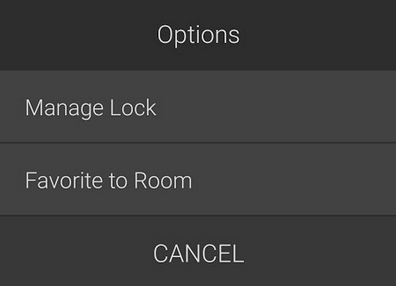
Editing a User
You can now edit each user. Usually, the lock will have by default users available. The default users have a default name of 'User 1', 'User 2', 'User 3' etc. Should you require more users than listed, simply press the + button on the top right on this screen to add a new user, giving it a name, passcode and any attributes relating to restrictions you wish to give to this user.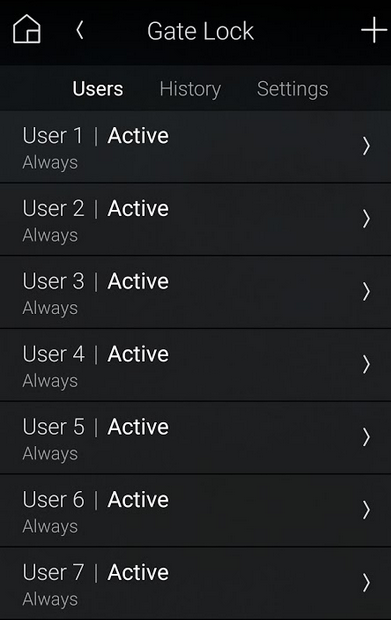
Edit User Screen:
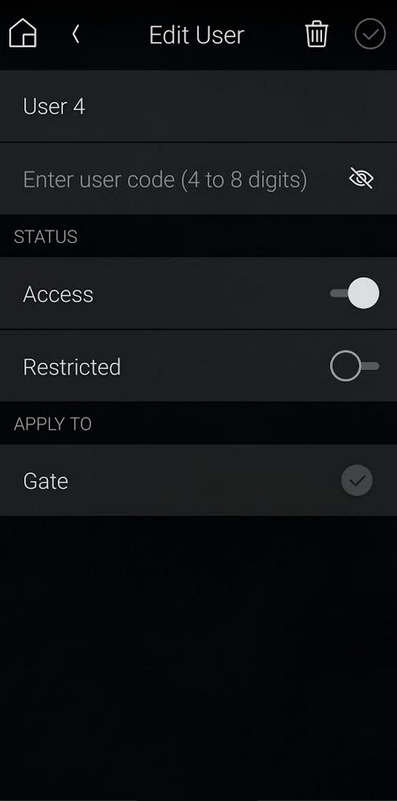
Each user can have a custom name, a user code for the user and if this user should be restricted in anyway.
Access Option
The user, can be if desired, be enabled or disabled via the toggle option as required for additional security.

A restriction can also be placed on the user, if desired. A restriction allows the home owner to restrict the user setup on the lock to only access the home or area that is locked during the period set:
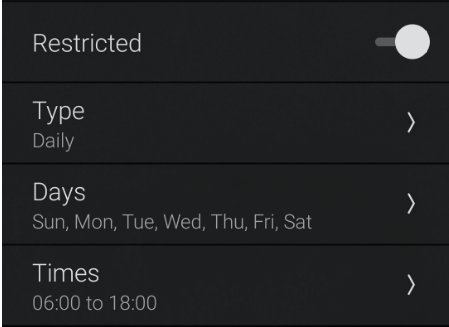
The 'Apply to' allows the user to be applied to various locks around the property which is using the same Lock driver as used in this example.

Was this article helpful?
That’s Great!
Thank you for your feedback
Sorry! We couldn't be helpful
Thank you for your feedback
Feedback sent
We appreciate your effort and will try to fix the article