1. Open the OvrC Connect app:

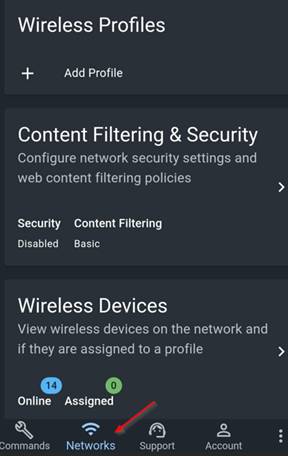
2. Select Networks at the bottom of the app:
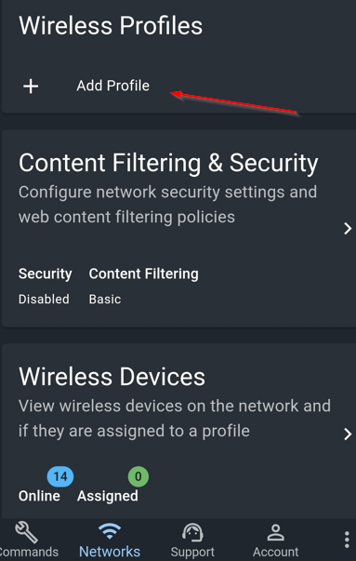
3. Under Wireless Profiles select Add Profile:
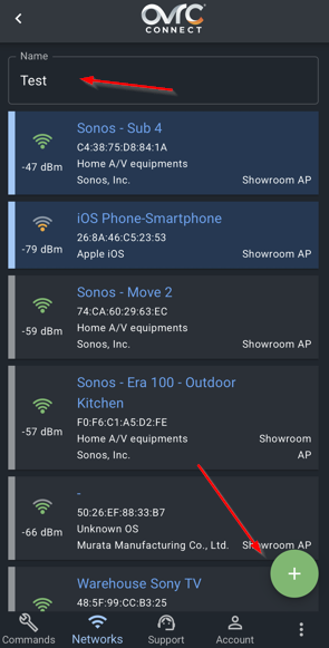
4. Name the profile, select devices you want in the profile, and tap the + symbol:
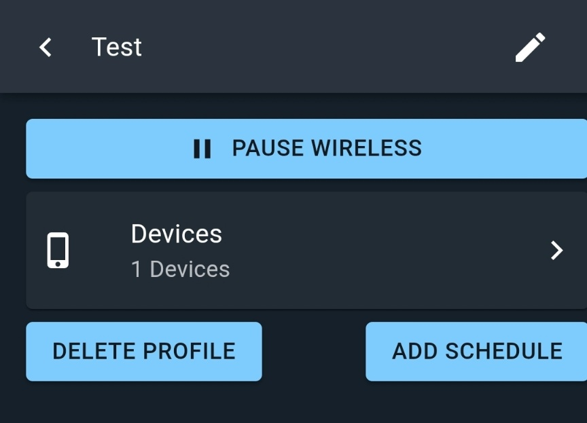
5. The profile will appear. You can pause the wireless connection to the selected devices by selecting Pause Wireless or add schedules for when the wireless connection should be cut off for the devices within the profile:
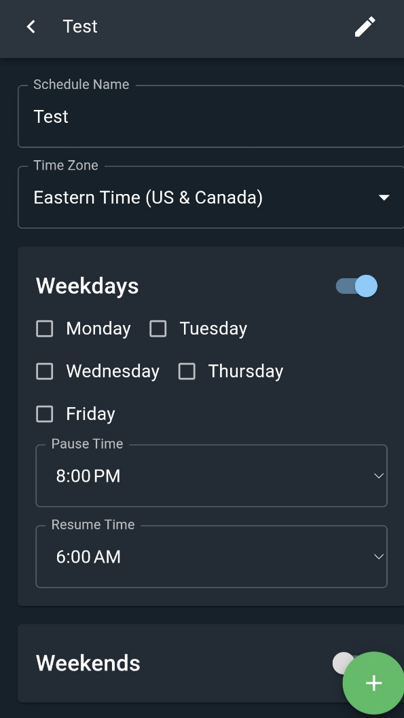
6. You can edit the profile(s) created and Add Schedules. Below is what it looks like when adding a schedule for the profile:
Was this article helpful?
That’s Great!
Thank you for your feedback
Sorry! We couldn't be helpful
Thank you for your feedback
Feedback sent
We appreciate your effort and will try to fix the article