Playing music in multiple rooms
Use media sessions (formerly called media zones) to play the current room's music in other audio-equipped rooms. You can add or remove rooms and adjust the volume in each room.
To play music in multiple rooms:
- Using the Control4 Listen experience, play some music in the current room.
On the Room screen's Active Media bar, select the
 (sessions) icon. A list of available rooms opens.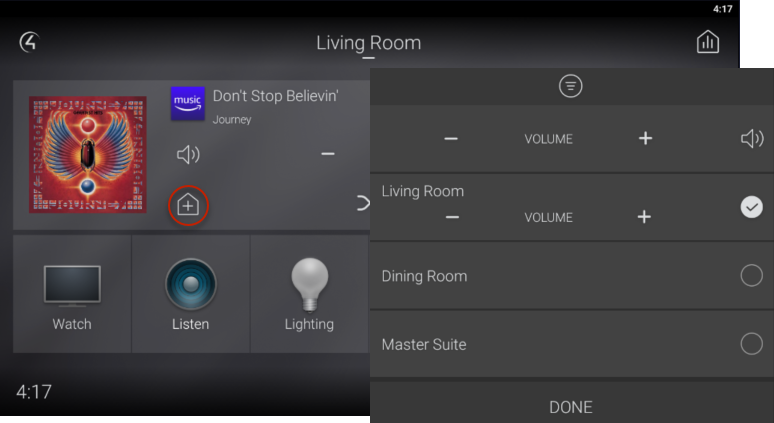
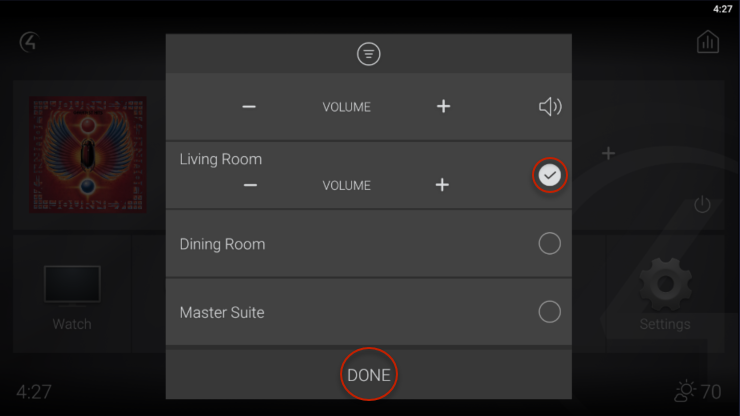
To add rooms to the music session, select the rooms to add, set each room's volume, then select DONE.
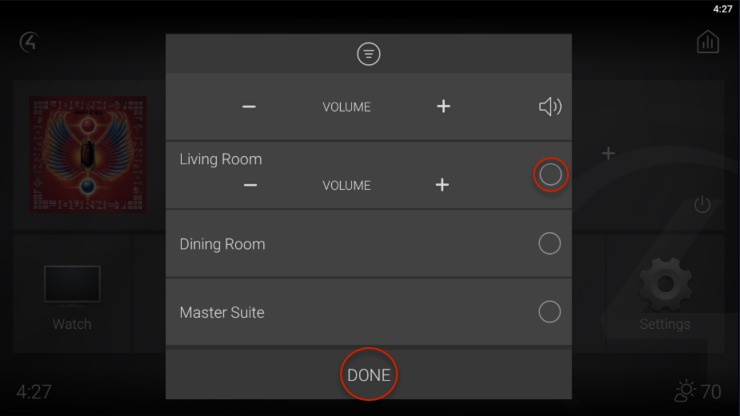
To remove a room, open the sessions screen, deselect the room to remove it, then select DONE.


Was this article helpful?
That’s Great!
Thank you for your feedback
Sorry! We couldn't be helpful
Thank you for your feedback
Feedback sent
We appreciate your effort and will try to fix the article